Troubleshoot Device
This guide explains how to use the Troubleshoot Device feature in the Loft App.
The Troubleshoot Device feature is used when a device that was previously functioning stops responding or when a provisioner-related error occurs.
It helps reinitialize communication between the device and your account.
Common situations where this feature is helpful:
- A device is not responding even though it was working earlier.
- An error related to provisioner is being displayed.
Watch The Video Tutorial
Steps to Use Troubleshoot Device
-
Open the Loft App
-
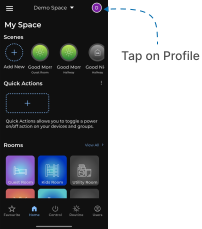
Access Profile Settings
- Tap on the Profile icon located at the top-right corner of the screen.
- The Account screen will open.
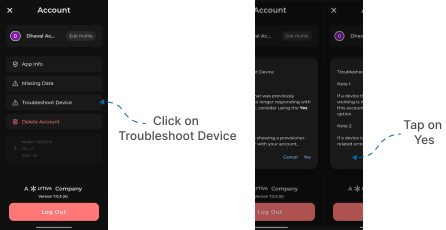
- Use the Troubleshoot Device Option
- Tap on Troubleshoot Device.
- A confirmation popup will appear.
- Tap Yes to confirm.
This feature attempts to fix communication issues between the application and a specific device by re-establishing the connection or resolving configuration-related problems.